Blur Faces and License Plates Before You Post — Redact Private Details Without Uploading
One photo can leak more than you meant to share: a neighbour’s face in the background, a car number plate on the driveway, a child’s school badge, a delivery label with your full address, or a Slack screenshot with someone’s email still visible. Before you post that image to Facebook, Reddit, Marketplace, or a support ticket, you need a way to redact those details — without sending the original photo to a random “blur tool” website.
This guide covers what people accidentally expose in everyday photos, how to blur or pixelate those regions safely in your browser with ImageCraft’s Privacy Redactor, and a short checklist you can reuse every time you share a picture online.
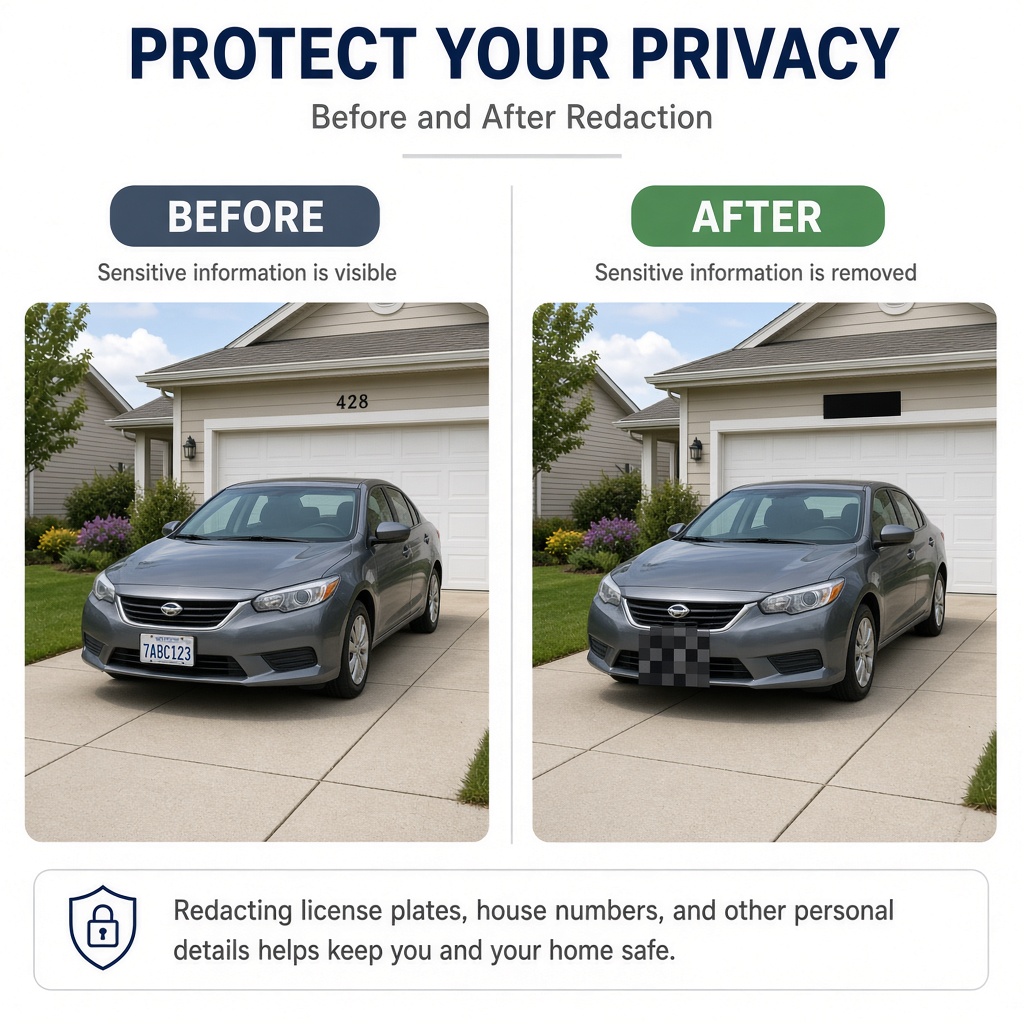
What Usually Needs Redacting (Real Situations)
- Marketplace / Facebook sales: your house number, open garage, neighbour’s face, or a car plate in the driveway.
- Delivery and unboxing photos: shipping labels with names, addresses, phone numbers, and barcodes.
- Screenshots for tech support: emails, account IDs, API keys, Slack DMs, or customer names in the corner of the UI.
- Street or travel photos: number plates, doorbell cameras, and bystanders who never consented to being posted.
- School, sports, or event albums: children’s faces and name badges when you only meant to share the venue.
- Workplace docs photographed on a desk: badges, whiteboards, and other people’s monitors in the background.
EXIF GPS is a separate problem (strip metadata with an EXIF tool). Redaction is for what is visible inside the pixels — faces, plates, text, and labels that compression cannot hide.
Why “Upload to Blur” Tools Are a Bad Fit for Private Photos
Many free online redactors ask you to upload the image first. That means the most sensitive version of the file — the one that still shows the plate or face — crosses the network before anything is blurred. If the photo includes children, home addresses, medical paperwork, or workplace data, that upload is the riskiest step in the workflow.
- The unredacted original leaves your device.
- You rarely know how long the server keeps the file, or whether it is used for model training.
- Support screenshots and home photos are exactly the files you should not send to unknown processors.
ImageCraft’s Privacy Redactor runs entirely in your browser. You draw blur, pixelate, or solid blocks over the sensitive regions; the edited image is generated on your device. Image bytes are not uploaded to ImageCraft’s servers for processing.
Blur vs Pixelate vs Solid Block — Which to Use
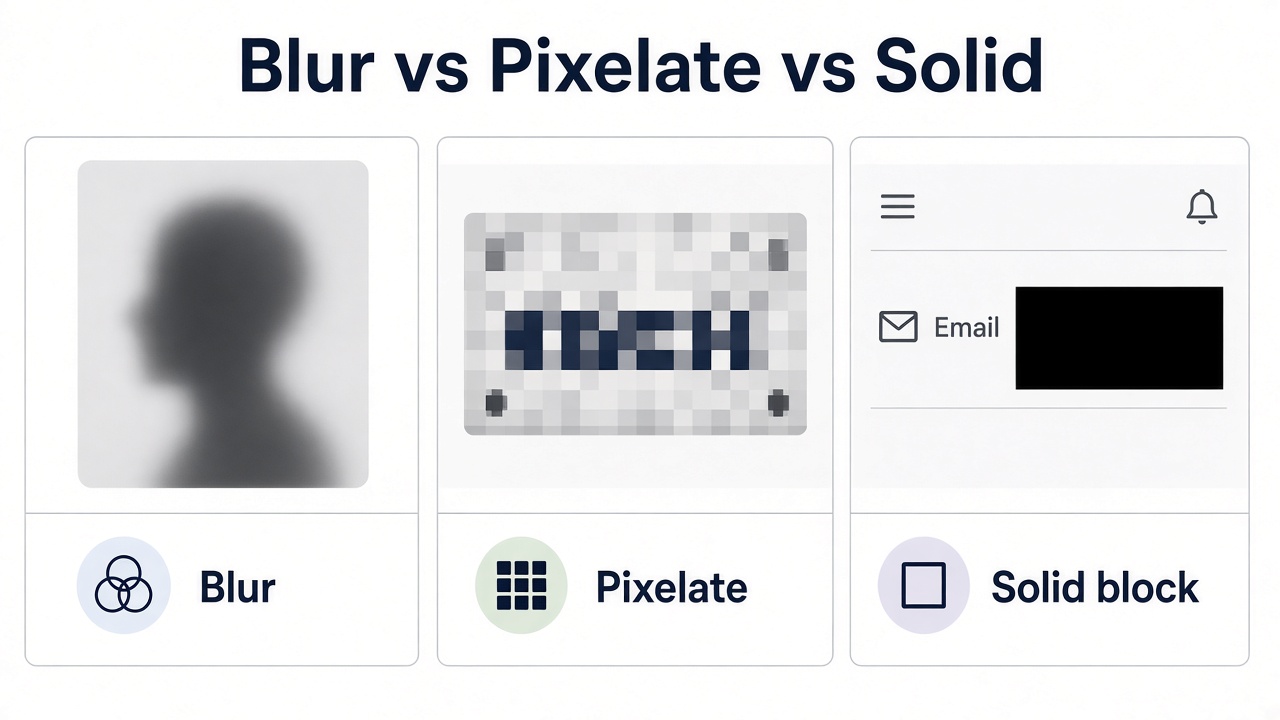
- Blur: softens a region so it looks natural in casual posts. Use for faces in backgrounds and mild text when you still want the photo to feel “real.”
- Pixelate: large mosaic blocks that clearly signal “redacted.” Better for plates, badges, and text you want obviously unreadable.
- Solid block: strongest option for screenshots and documents — cover the area with an opaque rectangle so nothing underneath remains.
Rule of thumb: if someone could still guess the plate or email from a light blur, switch to pixelate or a solid block. For public Marketplace listings, prefer strong redaction over a subtle blur.
How to Redact a Photo with ImageCraft (Step by Step)
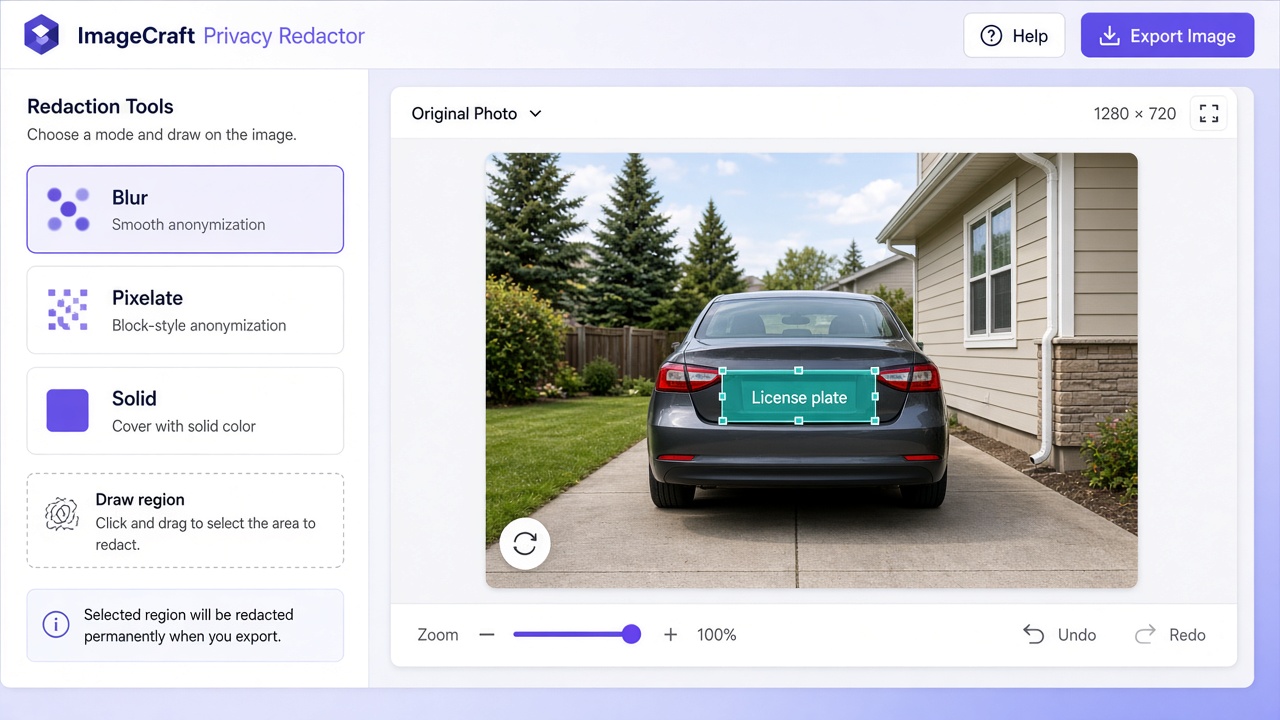
- 1. Open Privacy Redactor → Blur faces, plates and text before sharing
- 2. Upload the photo or screenshot (JPG, PNG, or WebP). Processing stays in the browser.
- 3. Choose blur, pixelate, or solid fill for the regions you need to hide.
- 4. Draw boxes over faces, plates, labels, emails, or other private text. Pro unlocks multiple regions and stronger options; free users can redact one region to try the flow.
- 5. Preview the result at full size — zoom in on small text and plates to confirm they are unreadable.
- 6. Download the redacted image, then share that file (not the original).
After redacting, keep the original offline if you still need it. Never re-upload the unredacted file “just to check framing” on social networks.
A 60-Second Pre-Post Checklist
- Faces: anyone who did not consent to appear?
- Vehicles: number plates fully covered?
- Address clues: house numbers, street signs, mailbox names, shipping labels?
- Screenshots: emails, phone numbers, IDs, tokens, customer names?
- Background monitors and whiteboards: readable text?
- Children: faces and name tags when the post does not need them?
- Metadata: strip GPS/EXIF if the photo was taken on a phone → View and remove EXIF and GPS metadata
Example Workflows
Selling a car or sofa on Marketplace
Crop or redact the plate, cover the house number on the garage, and blur neighbours visible through a window. Then resize for the listing and compress so the upload stays fast — without putting the original driveway shot on a third-party blur site first.
Posting a support screenshot
Solid-block the email address, account ID, and any API key. Pixelate avatars if they are not relevant. Export the redacted PNG and attach that to the ticket. OCR tools can pull text from screenshots — which is useful for you, and a reminder that uncleared screenshots are readable by machines too.
Sharing a kids’ sports photo
If you only need the field or the trophy, blur other children’s faces and any name on a jersey or certificate. Prefer a strong blur or pixelate so faces cannot be recovered by zooming in.
Redaction Alone Is Not Enough
- Strip EXIF/GPS so the file does not still contain your home coordinates → View and remove EXIF and GPS metadata
- Do not post the original alongside the redacted crop in the same album.
- Avoid “before/after” posts that show the unredacted original for comparison.
- On documents, prefer solid blocks; light Gaussian blur can sometimes leave recoverable shapes.
Try It Privately in Your Browser
- Privacy Redactor → Blur faces, plates and text before sharing
- EXIF Metadata Viewer (strip GPS) → View and remove EXIF and GPS metadata
- OCR Extract Text (copy text from screenshots after you redact) → Extract text from images with private OCR
- Crop & Rotate (trim away sensitive edges first) → Crop and rotate images without uploading